How to write a robots.txt file without blocking the wrong pages
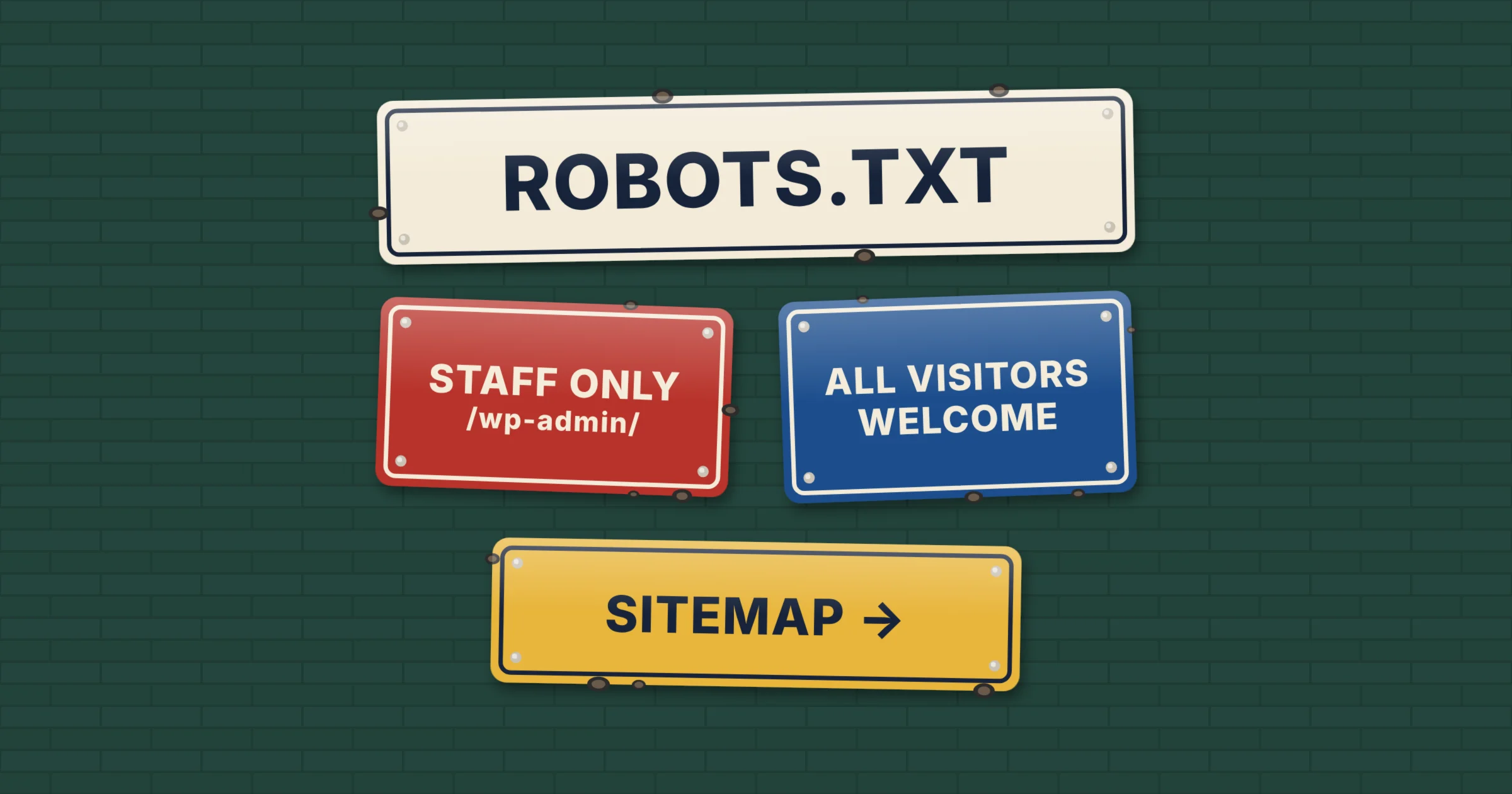
A robots.txt file is a plain text file at the root of your website that tells crawlers which parts of the site they may request. Use it to keep crawlers out of areas with no search value, such as admin pages and internal search results, and to point them to your sitemap. Do not use it to hide pages from Google: a blocked page can still appear in results, so use a noindex tag for that instead.
Robots.txt is one of the first checks in any technical SEO review, because a single wrong line can stop search engines and AI tools reading an entire site. This guide explains how the file works, what to put in it and what to leave out, how to handle AI crawlers and how to test your file before it causes problems.
What is a robots.txt file?
Robots.txt is part of the Robots Exclusion Protocol, a convention that dates from 1994 and became an official internet standard, RFC 9309, in 2022. Before a well-behaved crawler requests pages from your site, it fetches yourdomain.co.uk/robots.txt and follows the rules it finds there.
Three points shape how you should use it:
- It controls crawling, not indexing. A blocked URL is not fetched, but Google can still index the address if other pages link to it, usually without a description.
- It is a request, not a lock. Google, Bing and the main AI companies follow it. Scrapers and malicious bots can ignore it.
- It is public. Anyone can read your robots.txt, so listing a private folder in it advertises where that folder is. Protect private content with a password instead.
How robots.txt works
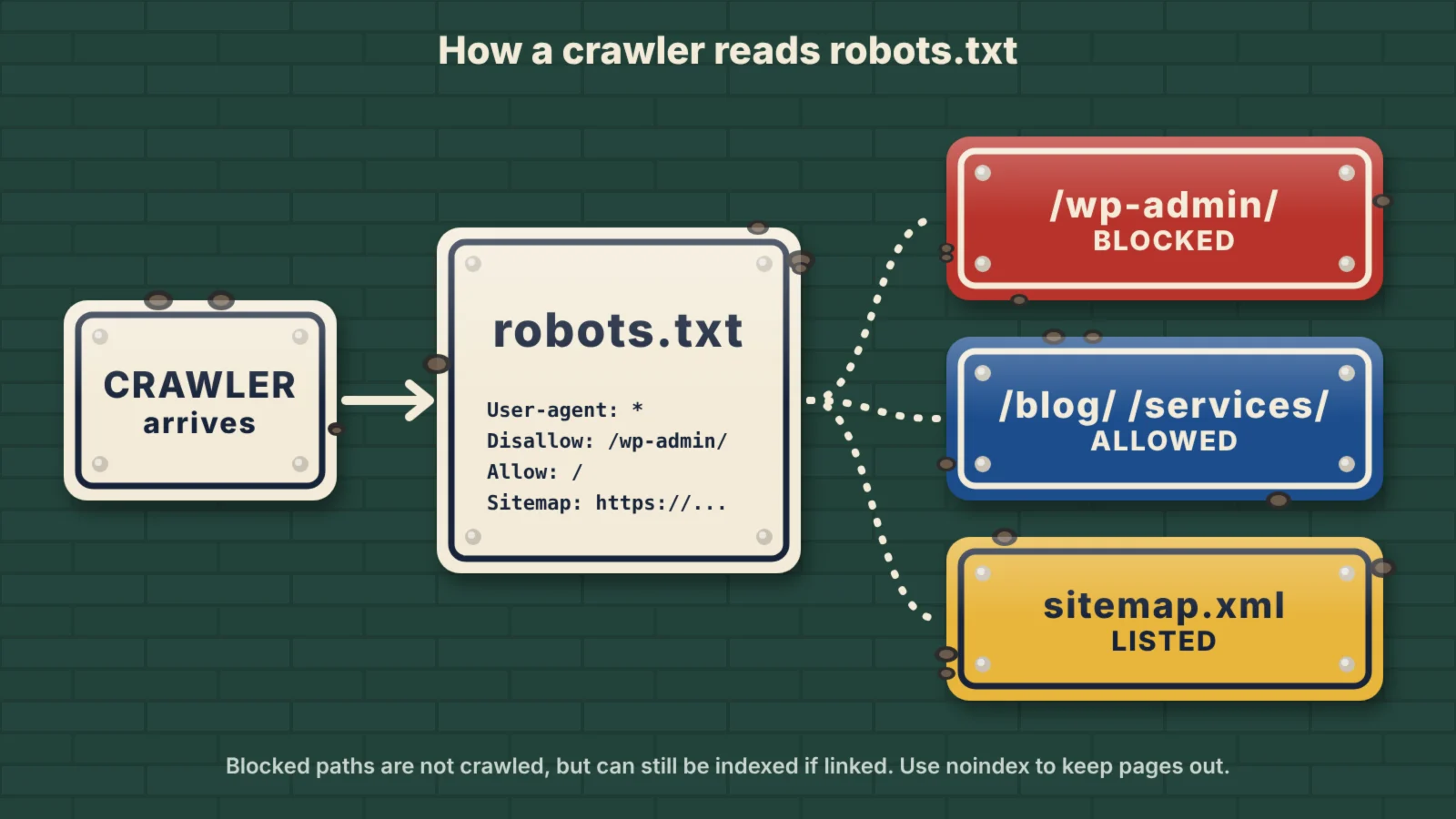
The file is a list of groups. Each group starts with one or more User-agent lines naming the crawlers it applies to, followed by rules saying which paths they may or may not request.
User-agent: *
Disallow: /wp-admin/
Allow: /wp-admin/admin-ajax.php

Sitemap: https://www.example.co.uk/sitemap_index.xml
This example, close to the default WordPress file, tells every crawler to stay out of the admin area while still allowing one file that some pages need to work, and gives the location of the sitemap.
The directives you will use
- User-agent: the crawler a group applies to. An asterisk means every crawler without a more specific group of its own.
- Disallow: a path the crawler should not request.
Disallow: /blocks the whole site, and an emptyDisallow:blocks nothing. - Allow: an exception inside a blocked folder.
- Sitemap: the full address of your XML sitemap. It can sit anywhere in the file and applies to all crawlers.
How conflicts are settled
A crawler follows only the most specific group that names it. If you add a group for Googlebot, Googlebot ignores the rules under User-agent: *, so repeat any shared rules in the new group. Within a group, Google applies the rule with the longest matching path, and when an Allow and a Disallow rule match equally, it chooses Allow.
Paths are case-sensitive, so /Admin/ and /admin/ are different. Google also supports two wildcards: * for any sequence of characters and $ for the end of a URL. Disallow: /*.pdf$ blocks every address ending in .pdf.
Rules that catch people out
Google’s robots.txt documentation sets out several details that matter in practice:
- The file must sit at the root of each host. www.example.co.uk and shop.example.co.uk each need their own file.
- Google reads only the first 500 KiB and ignores anything after it.
- Google usually caches the file for up to 24 hours, so a change can take a day to take effect.
- If robots.txt returns a 404, Google assumes there are no restrictions. If it returns a server error, Google stops crawling the site until it can read the file again.
- Google ignores the
Crawl-delaydirective, although Bing supports it. Google also stopped supportingnoindexrules inside robots.txt in 2019.
What to block and what to allow
Most small business sites need very few rules. Block areas that waste crawling and offer nothing to searchers, and leave everything else open.
| Usually block | Never block |
|---|---|
| Admin and login areas, such as /wp-admin/ | Pages you want in search or AI answers |
| Internal site search results, such as /?s= or /search/ | CSS, JavaScript and image files that pages need to display |
| Basket, checkout and account pages | Pages carrying a noindex tag you want search engines to see |
| Filter and sort parameters that create endless near-duplicate URLs on large shops | Pages you have redirected, because crawlers must reach them to see the redirect |
| Staging or test copies of the site, though a password is safer | Your sitemap |
Blocking CSS or JavaScript is an old habit worth checking for. Google renders pages much like a browser, and if it cannot load the files that build the layout, it may judge a page as broken or not mobile friendly.
Robots.txt and AI crawlers
AI companies publish the user agent names their crawlers use, and most respect robots.txt. The important distinction is between crawlers that fetch pages for AI search answers and crawlers that collect content to train models. Our technical SEO guide lists the main ones by company.
For most businesses, a sensible default is to allow the search crawlers, so AI tools can find and cite you, and make a separate decision about training. This example blocks the main training crawlers while leaving AI search and normal search open:
User-agent: GPTBot
Disallow: /

User-agent: ClaudeBot
Disallow: /

User-agent: Google-Extended
Disallow: /

User-agent: *
Disallow: /wp-admin/
Allow: /wp-admin/admin-ajax.php
Google-Extended is a control token rather than a separate crawler. Blocking it stops your content being used to train Gemini models, but it does not remove you from AI Overviews or AI Mode, which rely on Googlebot. Blocking Googlebot to stay out of AI Overviews would also remove you from normal search.
Check what sits in front of your site too. Cloudflare’s managed robots.txt can add its own AI rules ahead of yours, and firewalls sometimes block AI crawlers before they read the file at all. The Kutola AI Crawler Checker shows which AI crawlers your robots.txt allows and blocks.
How to create or edit a robots.txt file
- Look at what you have. Open yourdomain.co.uk/robots.txt in a browser. Many sites already serve one, often created by the CMS or an SEO plugin.
- Decide what to block. List the areas from the table above that exist on your site, and decide on AI training crawlers.
- Write the file. Use a plain text editor and save it as robots.txt in UTF-8, or use the Kutola Robots.txt Generator to build a clean file with the common rules, AI crawler settings and your sitemap line.
- Put it in the right place. In WordPress, SEO plugins such as Yoast and Rank Math include a robots.txt editor. Shopify lets you edit it through a robots.txt.liquid theme template, Wix has a robots.txt editor in its SEO settings and on other sites you upload the file to the root folder.
- Test it before and after. Check the rules with the methods below, then confirm the live file loads at the root address with a 200 status.
How to test your robots.txt file
- Search Console robots.txt report. Under Settings, the robots.txt report shows the file Google last fetched, when it fetched it and any errors or warnings. You can ask Google to recrawl the file after an urgent fix.
- URL Inspection. Inspect an important page in Search Console. If the result says the page is blocked by robots.txt, a rule is catching more than you intended.
- A site crawler. Tools such as Screaming Frog can crawl your site while obeying robots.txt and list every URL it blocks, which shows the real reach of each rule.
- Bing Webmaster Tools. Bing has its own robots.txt tester, which is worth using if Bing or Copilot traffic matters to you.
Retest after every redesign, migration, plugin change or hosting move. A staging file with Disallow: / copied to the live site is one of the most common causes of a sudden traffic drop.
Common robots.txt mistakes
- Blocking the whole site by accident.
Disallow: /underUser-agent: *stops all compliant crawling. - Using robots.txt to remove pages from Google. Blocked pages can stay indexed. Use noindex and let crawlers see it.
- Blocking a page that carries noindex. The crawler never reads the tag, so the page may stay in results.
- Blocking CSS and JavaScript. Google needs them to render the page.
- Forgetting that a specific group replaces the general one. A Googlebot group without the shared rules gives Googlebot more access than you meant.
- Treating it as security. The file is public and optional, so it cannot protect private content.
- Setting it once and forgetting it. New sections, plugins and AI crawlers all call for a review.
Frequently asked questions
What is a robots.txt file used for?
A robots.txt file tells search engine and AI crawlers which parts of a website they may request. It is used to keep crawlers out of areas such as admin pages and internal search results, and to point them to the sitemap.
Does every website need a robots.txt file?
No. Without one, crawlers assume they may request everything, which suits many small sites. A file becomes useful when you want to block low-value areas, manage AI crawlers or list your sitemap.
Can robots.txt stop a page appearing in Google?
Not reliably. Robots.txt stops crawling, but Google can still index a blocked URL if other pages link to it. To keep a page out of search results, use a noindex tag and leave the page crawlable.
Where is my robots.txt file?
It is always at the root of your domain, for example yourdomain.co.uk/robots.txt. In WordPress it is often created virtually by WordPress or an SEO plugin, so you may not see a file on the server.
Should I block AI crawlers in robots.txt?
It depends on your goals. Blocking training crawlers such as GPTBot keeps your content out of future model training, while blocking search crawlers such as OAI-SearchBot can stop AI tools citing you. Many businesses allow search crawlers and block training ones.
On this page
Back to topMake sure search engines and AI tools can read your site
Kutola checks the technical foundations that decide whether your pages get crawled, indexed and cited, from robots.txt and sitemaps to AI crawler access. See how it fits into our SEO and AI search work, or get in touch to talk through your website.